

Embroidery Digitizing Beginners Guide: Start Creating Professional Designs Today
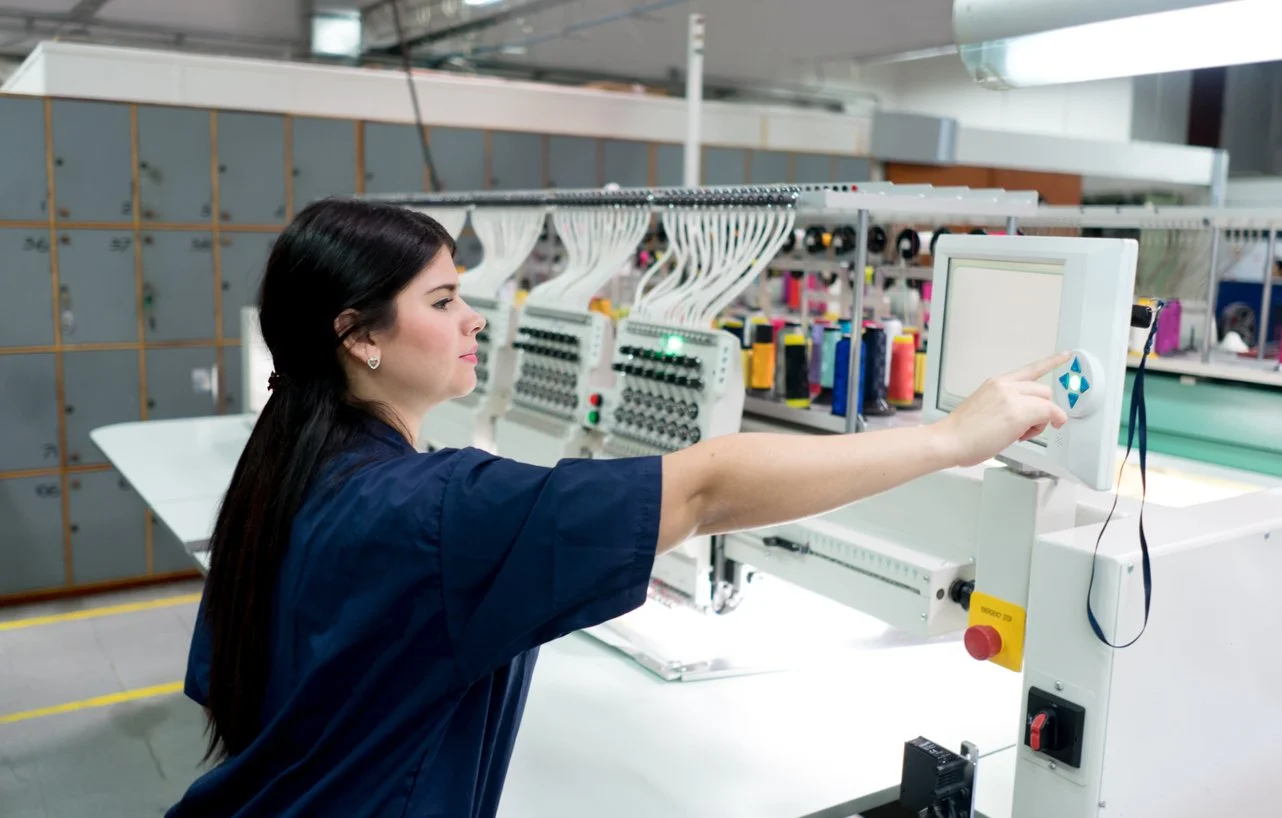
You just got your first embroidery machine. You have threaded it, hooped some fabric, and run a few built-in designs. Now you want to create your own. You want to take that logo, that sketch, that idea in your head and turn it into stitches. But where do you even start? The world of embroidery digitizing can feel overwhelming, with confusing software, mysterious file formats, and technical terms that sound like another language. Take a deep breath. This Embroidery Digitizing Beginners Guide will walk you through everything you need to know to start creating professional designs today.
Embroidery digitizing is the process of converting artwork into stitch-by-stitch instructions that embroidery machines can read. It is part art, part science, and entirely learnable. With the right guidance, anyone can master the basics and start producing beautiful embroidery.
Let me guide you through the fundamentals.
What Is Embroidery Digitizing?
At its simplest, digitizing is translation. You have a picture of what you want (a logo, a design, text). Your embroidery machine needs a set of commands telling it exactly where to put every needle penetration, what direction each stitch should go, how dense the coverage should be, and when to change thread colors.
Digitizing creates those commands. It takes your flat artwork and turns it into dimensional thread art.
Important distinction: Digitizing is not the same as converting file formats. Converting changes a file from one machine format to another. Digitizing creates stitch data from scratch.
Do You Need to Digitize Yourself?
Before we dive into how to digitize, ask yourself whether you need to do it yourself. Many successful embroiderers never digitize their own designs. They outsource to professional digitizing services.
Outsource if:
-
You only need occasional designs
-
Your designs are complex and need expert handling
-
You prefer focusing on production, not software
-
You want guaranteed results without learning curve
Digitize yourself if:
-
You enjoy learning technical skills
-
You create designs frequently
-
You want complete creative control
-
You have time to invest in mastering the craft
Professional digitizing services like Absolute Digitizing, Digitizing Buddy, Cool Embroidery Design, and Absolute Digitizer charge $10-15 per design. For many beginners, this is the smartest path.
If you decide to learn digitizing yourself, read on.
Essential Tools for Beginners
To start digitizing, you need three things.
1. Digitizing Software
You cannot digitize in Photoshop or Illustrator. You need specialized embroidery software.
Beginner-friendly paid options:
-
Hatch Embroidery – Excellent balance of power and usability
-
Embrilliance – Modular, runs on Mac and Windows
-
SewArt – Budget-friendly entry point
-
Brother PE-Design – Native for Brother users
Free options:
-
Ink/Stitch with Inkscape – Powerful but steep learning curve
-
Wilcom TrueSizer – Free viewer and basic converter
-
Bernina ARTlink – Free for basic conversion
Start with free trials to see what fits your style.
2. Clean Source Artwork
Your digitizing results depend heavily on your source material.
Vector files (AI, EPS, SVG) are ideal. They contain clean paths that software can interpret accurately.
Raster images (JPG, PNG) work too, but need higher quality. Aim for at least 300 DPI at your final stitch size.
Clean up your artwork before importing. Remove backgrounds. Simplify gradients. Ensure text is large enough to remain readable.
3. Your Machine and Fabric Knowledge
Different machines and fabrics require different digitizing approaches.
Know your machine's capabilities: Maximum stitch count, hoop sizes, supported formats.
Know your fabric: Stretchy knits need different settings than stable wovens. Caps need special handling. Keep notes on what works.
Basic Digitizing Concepts Every Beginner Must Understand
Stitch Types
Three stitch types form the foundation of embroidery.
Satin stitches create smooth, shiny edges. Use them for borders, text, and narrow columns up to about 12mm wide.
Fill stitches (tatami) cover large areas evenly. Use them for backgrounds and large shapes.
Running stitches are simple lines. Use them for fine details, outlines, and underlay.
Underlay
Underlay is the layer of stitches that goes down first, before any visible stitching. You never see it, but you would notice if it were missing.
Underlay does three things:
-
Stabilizes fabric, preventing shifting
-
Creates a smooth foundation for top stitches
-
Prevents stitches from sinking into loose fabrics
Never skip underlay. It separates professional work from amateur efforts.
Density
Density controls how close stitches sit together.
Too dense: Puckering, thread breaks, stiff fabric
Too light: Gaps, poor coverage, washed-out colors
Start with default densities in your software, then adjust based on test stitches.
Pull Compensation
Thread tension pulls fabric together slightly during stitching. A column you designed to be 5mm wide may end up 4.8mm wide.
Pull compensation widens certain areas so that after pulling, they end up the correct size.
Stretchy fabrics need more compensation (0.3-0.4mm). Stable fabrics need less (0.1-0.2mm).
Stitch Angle
Stitch direction affects how light reflects off your design. Vary angles intentionally to create visual interest and structural stability.
For text: Stitches perpendicular to letter strokes
For fills: Alternating angles for stability
For borders: Perpendicular to the edge
Step-by-Step: Your First Digitizing Project
Let's walk through a simple project to digitize a basic logo.
Step 1: Prepare Your Artwork
Start with a clean, high-resolution image of your logo. If possible, use a vector file. Simplify to 2-3 colors for your first project.
Step 2: Set Up Your Software
Open your digitizing software. Create a new document and set the dimensions to your final stitch size. For a left chest logo, 3-4 inches wide is typical.
Step 3: Import Your Artwork
Import your image as a reference layer. Most software lets you lock it in place so you can trace over it.
Step 4: Create Objects
Using your software's drawing tools, trace each element of your design. Create separate objects for:
-
Text and letters
-
Borders and outlines
-
Fill areas
Step 5: Assign Stitch Types
For each object:
-
Text and borders → Satin stitches
-
Large solid areas → Fill stitches
-
Fine lines → Running stitches
Step 6: Set Basic Parameters
Start with default settings for:
-
Density
-
Underlay (enable basic underlay)
-
Stitch angle (use 45 degrees for fills)
Step 7: Add Pull Compensation
Apply slight compensation to satin stitches, especially on stretchy fabrics.
Step 8: Preview and Simulate
Use your software's stitch simulator to watch the design sew. Look for:
-
Unnecessary jumps
-
Areas that look too dense or too light
-
Registration between colors
Step 9: Save Your Work
Save your file in the software's native format (this is your master). Then export a machine file (DST, PES, etc.) for testing.
Step 10: Test Stitch
Run a test on scrap fabric identical to your final material. Examine results carefully. Make notes on what needs adjustment.
Step 11: Refine
Go back to your master file and adjust based on test results. Change density, modify underlay, tweak compensation. Export and test again.
Step 12: Repeat Until Perfect
Professional digitizing often requires multiple test-refine cycles. This is normal. Each iteration brings you closer to perfect.
Common Beginner Mistakes to Avoid
Mistake 1: Starting too complex. Begin with simple designs. Master basics before tackling detailed logos.
Mistake 2: Skipping underlay. Underlay solves many problems. Use it.
Mistake 3: Ignoring fabric type. Different fabrics need different settings. Always consider your material.
Mistake 4: Not testing. Test stitches catch problems before they ruin garments. Never skip this step.
Mistake 5: Losing master files. Always save editable versions. Machine files cannot be edited.
Learning Resources
Embroidery digitizing is a skill that improves with practice. Use these resources to accelerate your learning.
YouTube tutorials: Search for your software name plus "beginner tutorial."
User forums: Embroidery communities offer advice from experienced digitizers.
Software documentation: Read your software's manual. It contains valuable information.
Practice designs: Digitize simple shapes and text repeatedly until techniques become second nature.
When to Upgrade to Professional Help
As you learn, you will encounter designs that exceed your current skills. Complex logos with fine details, multi-color gradients, or specialty techniques like 3D puff may require professional expertise.
Professional digitizing services cost $10-30 per design. For complex work, this is money well spent. You get perfect files while continuing to learn at your own pace.
Conclusion
Embroidery digitizing is a rewarding skill that opens endless creative possibilities. Start with the basics: understand stitch types, underlay, density, compensation, and angle. Choose beginner-friendly software. Practice on simple designs. Test everything. Learn from mistakes.
Remember that even experienced digitizers started where you are now. Every expert was once a beginner who refused to give up.
Whether you digitize yourself or partner with professionals, the goal remains the same: beautiful embroidery that brings your designs to life. Your journey starts today. Take that first step.

 English
 French
 Portuguese
 Russian